
JavaFX 列表视图
JavaFX教程 - JavaFX列表视图
ListView类允许我们显示一个可滚动的项目列表。
创建列表视图
以下代码创建了一个ListView并在之后填充数据。
ListView<String> list = new ListView<>();

ObservableList<String> items =FXCollections.observableArrayList (
    "A", "B", "C", "D");
list.setItems(items);
要更改列表视图控件的大小和高度,使用setPrefHeight和setPrefWidth方法。
list.setPrefWidth(100);
list.setPrefHeight(70);
更改ListView对象的方向
list.setOrientation(Orientation.HORIZONTAL)
SelectionModel和FocusModel跟踪ListView对象的选择和焦点。
- getSelectionModel().getSelectedIndex() - 返回所选的索引
- getSelectionModel().getSelectedItem() - 返回所选项目
- getFocusModel().getFocusedIndex() - 返回焦点项的索引
- getFocusModel().getFocusedItem() - 返回焦点项
默认的selectionMode属性为SelectionMode.SINGLE。要在默认ListView实例中启用多选,请使用以下代码:
listView.getSelectionModel().setSelectionMode(SelectionMode.MULTIPLE);
ComboBox单元格
我们可以通过使用CheckBoxListCell,ChoiceBoxListCell,ComboBoxListCell和TextFieldListCell添加各种类型的数据。
它就像在Swing中使用CellRenderer。
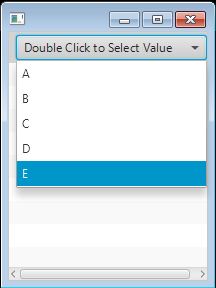
以下代码使用ComboBoxListCell类在列表单元格中使用组合框。
import javafx.application.Application;
import javafx.collections.FXCollections;
import javafx.collections.ObservableList;
import javafx.scene.Scene;
import javafx.scene.control.ListView;
import javafx.scene.control.cell.ComboBoxListCell;
import javafx.scene.layout.StackPane;
import javafx.stage.Stage;

public class Main extends Application {
  public static void main(String[] args) {
    launch(args);
  }

  @Override
  public void start(Stage primaryStage) {
    ObservableList<String> names = FXCollections
        .observableArrayList();
    ObservableList<String> data = FXCollections.observableArrayList();

    ListView<String> listView = new ListView<String>(data);
    listView.setPrefSize(200, 250);
    listView.setEditable(true);

    names.addAll("A", "B", "C", "D", "E");

    data.add("Double Click to Select Value");

    listView.setItems(data);
    listView.setCellFactory(ComboBoxListCell.forListView(names));

    StackPane root = new StackPane();
    root.getChildren().add(listView);
    primaryStage.setScene(new Scene(root, 200, 250));
    primaryStage.show();
  }
}
上面的代码生成以下结果。
自定义列表视图
以下代码显示了如何将矩形绘制到ListView单元格。
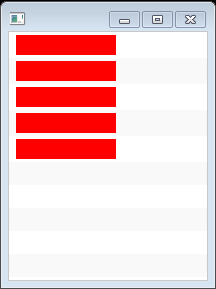
它通过扩展ListCell创建一个自定义单元格。updateItem接收项目参数中的单元格值。然后它绘制一个红色的矩形。
  static class ColorRectCell extends ListCell<String> {
    @Override
    public void updateItem(String item, boolean empty) {
      super.updateItem(item, empty);
      Rectangle rect = new Rectangle(100, 20);
      if (item != null) {
        rect.setFill(Color.RED);
        setGraphic(rect);
      }
    }
  }
完整的源代码
import javafx.application.Application;
import javafx.collections.FXCollections;
import javafx.collections.ObservableList;
import javafx.scene.Scene;
import javafx.scene.control.ListCell;
import javafx.scene.control.ListView;
import javafx.scene.layout.StackPane;
import javafx.scene.paint.Color;
import javafx.scene.shape.Rectangle;
import javafx.stage.Stage;

public class Main extends Application {
  public static void main(String[] args) {
    launch(args);
  }

  @Override
  public void start(Stage primaryStage) {

    ObservableList<String> data = FXCollections.observableArrayList();

    ListView<String> listView = new ListView<String>(data);
    listView.setPrefSize(200, 250);
    listView.setEditable(true);

    data.addAll("A", "B", "C", "D", "E");

    listView.setItems(data);
    listView.setCellFactory((ListView<String> l) -> new ColorRectCell());
    StackPane root = new StackPane();
    root.getChildren().add(listView);
    primaryStage.setScene(new Scene(root, 200, 250));
    primaryStage.show();
  }

  static class ColorRectCell extends ListCell<String> {
    @Override
    public void updateItem(String item, boolean empty) {
      super.updateItem(item, empty);
      Rectangle rect = new Rectangle(100, 20);
      if (item != null) {
        rect.setFill(Color.RED);
        setGraphic(rect);
      }
    }
  }
}
上面的代码生成以下结果。
处理列表项目选择
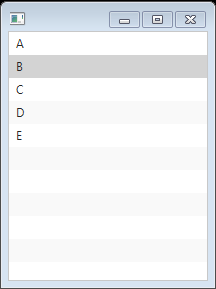
以下代码显示如何处理列表视图项选择事件。它注册用于选择模型中所选项目属性的事件处理程序。 新值为从列表视图中选择新的值。
    listView.getSelectionModel().selectedItemProperty().addListener(
        (ObservableValue<? extends String> ov, String old_val,
            String new_val) -> {
                System.out.println(new_val);

    });
完整的源代码
import javafx.application.Application;
import javafx.beans.value.ObservableValue;
import javafx.collections.FXCollections;
import javafx.collections.ObservableList;
import javafx.scene.Scene;
import javafx.scene.control.ListView;
import javafx.scene.layout.StackPane;
import javafx.stage.Stage;

public class Main extends Application {
  public static void main(String[] args) {
    launch(args);
  }
  @Override
  public void start(Stage primaryStage) {
    ObservableList<String> data = FXCollections.observableArrayList();

    ListView<String> listView = new ListView<String>(data);
    listView.setPrefSize(200, 250);

    data.addAll("A", "B", "C", "D", "E");

    listView.setItems(data);
    listView.getSelectionModel().selectedItemProperty().addListener(
        (ObservableValue<? extends String> ov, String old_val,
            String new_val) -> {
                System.out.println(new_val);

    });
    StackPane root = new StackPane();
    root.getChildren().add(listView);
    primaryStage.setScene(new Scene(root, 200, 250));
    primaryStage.show();
  }
}
上面的代码生成以下结果。
双列表视图
ObservableList是一个集合,能够在添加,更新和删除对象时通知UI控件。JavaFX ObservableLists通常用于列表UI控件,如ListView和TableView。
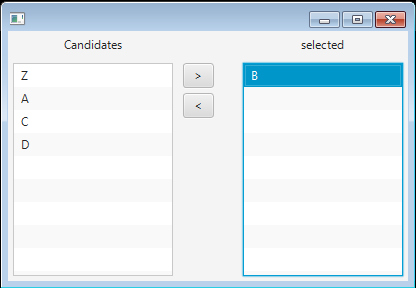
下面的代码显示了如何使用ObservableList来处理ListView。它有两个ListView控件和两个按钮。 我们可以使用两个按钮将项目从一个列表视图移动到另一个列表视图。
import javafx.application.Application;
import javafx.collections.FXCollections;
import javafx.collections.ObservableList;
import javafx.event.ActionEvent;
import javafx.geometry.HPos;
import javafx.geometry.Insets;
import javafx.scene.Scene;
import javafx.scene.control.Button;
import javafx.scene.control.Label;
import javafx.scene.control.ListView;
import javafx.scene.layout.BorderPane;
import javafx.scene.layout.ColumnConstraints;
import javafx.scene.layout.GridPane;
import javafx.scene.layout.Priority;
import javafx.scene.layout.VBox;
import javafx.scene.paint.Color;
import javafx.stage.Stage;

public class Main extends Application {

  @Override
  public void start(Stage primaryStage) {
    BorderPane root = new BorderPane();
    Scene scene = new Scene(root, 400, 250, Color.WHITE);

    GridPane gridpane = new GridPane();
    gridpane.setPadding(new Insets(5));
    gridpane.setHgap(10);
    gridpane.setVgap(10);
    ColumnConstraints column1 = new ColumnConstraints(150, 150,
        Double.MAX_VALUE);
    ColumnConstraints column2 = new ColumnConstraints(50);
    ColumnConstraints column3 = new ColumnConstraints(150, 150,
        Double.MAX_VALUE);
    column1.setHgrow(Priority.ALWAYS);
    column3.setHgrow(Priority.ALWAYS);
    gridpane.getColumnConstraints().addAll(column1, column2, column3);

    Label candidatesLbl = new Label("Candidates");
    GridPane.setHalignment(candidatesLbl, HPos.CENTER);
    gridpane.add(candidatesLbl, 0, 0);

    Label selectedLbl = new Label("selected");
    gridpane.add(selectedLbl, 2, 0);
    GridPane.setHalignment(selectedLbl, HPos.CENTER);

    // Candidates
    final ObservableList<String> candidates = FXCollections
        .observableArrayList("Z", "A", "B", "C", "D");
    final ListView<String> candidatesListView = new ListView<>(candidates);
    gridpane.add(candidatesListView, 0, 1);

    final ObservableList<String> selected = FXCollections.observableArrayList();
    final ListView<String> heroListView = new ListView<>(selected);
    gridpane.add(heroListView, 2, 1);

    Button sendRightButton = new Button(" > ");
    sendRightButton.setOnAction((ActionEvent event) -> {
      String potential = candidatesListView.getSelectionModel()
          .getSelectedItem();
      if (potential != null) {
        candidatesListView.getSelectionModel().clearSelection();
        candidates.remove(potential);
        selected.add(potential);
      }
    });

    Button sendLeftButton = new Button(" < ");
    sendLeftButton.setOnAction((ActionEvent event) -> {
      String s = heroListView.getSelectionModel().getSelectedItem();
      if (s != null) {
        heroListView.getSelectionModel().clearSelection();
        selected.remove(s);
        candidates.add(s);
      }
    });
    VBox vbox = new VBox(5);
    vbox.getChildren().addAll(sendRightButton, sendLeftButton);

    gridpane.add(vbox, 1, 1);
    root.setCenter(gridpane);

    GridPane.setVgrow(root, Priority.ALWAYS);
    primaryStage.setScene(scene);
    primaryStage.show();
  }
  public static void main(String[] args) {
    launch(args);
  }
}
上面的代码生成以下结果。
在两个列表视图之间拖放
以下代码显示如何在自定义对象的两个列表视图之间拖放。
import javafx.application.Application;
import javafx.collections.FXCollections;
import javafx.collections.ObservableList;
import javafx.event.EventHandler;
import javafx.geometry.Insets;
import javafx.scene.Scene;
import javafx.scene.control.Label;
import javafx.scene.control.ListCell;
import javafx.scene.control.ListView;
import javafx.scene.control.SelectionMode;
import javafx.scene.input.ClipboardContent;
import javafx.scene.input.DragEvent;
import javafx.scene.input.Dragboard;
import javafx.scene.input.MouseEvent;
import javafx.scene.input.TransferMode;
import javafx.scene.layout.GridPane;
import javafx.stage.Stage;
import javafx.util.Callback;

public class Main extends Application {

  private static final ListView<Student> leftListView = new ListView<Student>();

  private static final ObservableList<Student> leftList = FXCollections
      .observableArrayList();
  private static final ObservableList<Student> rightList = FXCollections
      .observableArrayList();
  private static final ListView<Student> rightListView = new ListView<Student>();

  private static final GridPane rootPane = new GridPane();

  public static void main(String[] args) {
    launch(args);
  }

  @Override
  public void start(Stage primaryStage) {
    initializeComponents();
    initializeListeners();

    buildGUI();

    populateData();

    primaryStage.setScene(new Scene(rootPane, 400, 325));
    primaryStage.show();
  }

  private void initializeListeners() {
    // drag from left to right
    leftListView.setOnDragDetected(new EventHandler<MouseEvent>() {
      @Override
      public void handle(MouseEvent event) {
        if (leftListView.getSelectionModel().getSelectedItem() == null) {
          return;
        }

        Dragboard dragBoard = leftListView.startDragAndDrop(TransferMode.MOVE);
        ClipboardContent content = new ClipboardContent();
        content.putString(leftListView.getSelectionModel().getSelectedItem()
            .getName());
        dragBoard.setContent(content);
      }
    });

    rightListView.setOnDragOver(new EventHandler<DragEvent>() {
      @Override
      public void handle(DragEvent dragEvent) {
        dragEvent.acceptTransferModes(TransferMode.MOVE);
      }
    });

    rightListView.setOnDragDropped(new EventHandler<DragEvent>() {
      @Override
      public void handle(DragEvent dragEvent) {
        String player = dragEvent.getDragboard().getString();
        rightListView.getItems().addAll(new Student(player));
        leftList.remove(new Student(player));
        leftListView.setItems(leftList);
        dragEvent.setDropCompleted(true);
      }
    });
    // drag from right to left
    rightListView.setOnDragDetected(new EventHandler<MouseEvent>() {
      @Override
      public void handle(MouseEvent event) {
        Dragboard dragBoard = rightListView.startDragAndDrop(TransferMode.MOVE);
        ClipboardContent content = new ClipboardContent();
        content.putString(rightListView.getSelectionModel().getSelectedItem()
            .getName());
        dragBoard.setContent(content);
      }
    });

    leftListView.setOnDragOver(new EventHandler<DragEvent>() {
      @Override
      public void handle(DragEvent dragEvent) {
        dragEvent.acceptTransferModes(TransferMode.MOVE);
      }
    });

    leftListView.setOnDragDropped(new EventHandler<DragEvent>() {
      @Override
      public void handle(DragEvent dragEvent) {
        String player = dragEvent.getDragboard().getString();
        leftListView.getItems().remove(new Student(player));

        rightList.remove(new Student(player));
        dragEvent.setDropCompleted(true);
      }
    });
  }

  private void buildGUI() {
    rootPane.setPadding(new Insets(10));
    rootPane.setPrefHeight(30);
    rootPane.setPrefWidth(100);
    rootPane.setVgap(10);
    rootPane.setHgap(20);

    Label playersLabel = new Label("Players");
    Label teamLabel = new Label("Team");

    rootPane.add(playersLabel, 0, 0);
    rootPane.add(leftListView, 0, 1);
    rootPane.add(teamLabel, 1, 0);
    rootPane.add(rightListView, 1, 1);
  }

  private void populateData() {
    leftList.addAll(new Student("Adam"), new Student("Alex"), new Student(
        "Alfred"));

    leftListView.setItems(leftList);
    rightListView.setItems(rightList);
  }

  private void initializeComponents() {
    initializeListView(leftListView);

    initializeListView(rightListView);
  }

  private void initializeListView(ListView<Student> listView) {
    listView.setPrefSize(250, 290);
    listView.setEditable(false);
    listView.getSelectionModel().setSelectionMode(SelectionMode.MULTIPLE);
    listView.setCellFactory(new StringListCellFactory());
  }

  class StringListCellFactory implements
      Callback<ListView<Student>, ListCell<Student>> {
    @Override
    public ListCell<Student> call(ListView<Student> playerListView) {
      return new StringListCell();
    }

    class StringListCell extends ListCell<Student> {
      @Override
      protected void updateItem(Student player, boolean b) {
        super.updateItem(player, b);

        if (player != null) {
          setText(player.getName());
        }
      }
    }
  }
}

class Student {
  private String name;

  public Student(String name) {
    this.name = name;
  }

  public String getName() {
    return name;
  }

  public void setName(String name) {
    this.name = name;
  }

  @Override
  public boolean equals(Object o) {
    if (this == o)
      return true;
    if (o == null || getClass() != o.getClass())
      return false;

    Student player = (Student) o;

    if (name != null ? !name.equals(player.name) : player.name != null)
      return false;

    return true;
  }

  @Override
  public int hashCode() {
    return name != null ? name.hashCode() : 0;
  }
}